
Instructions for Use
It is recommended to create a configuration file and package it through the Builder program
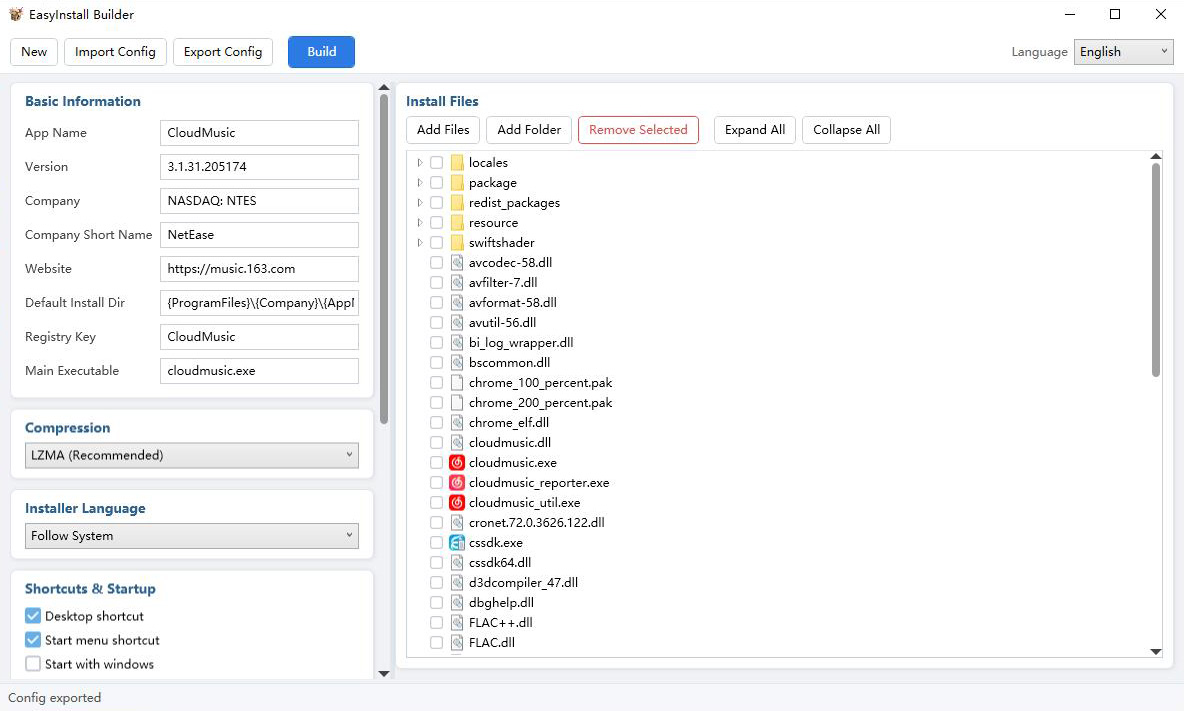
Configuration file
All installation behaviors are described by a JSON configuration object, which is serialized and stored in the EXE during packaging, and deserialized and read during installation:
{
  "AppName": "MyApp",
  "AppVersion": "1.0.0",
  "Company": "My Company",
  "CompanySimplify": "myco",
  "Website": "https://example.com",
  "DefaultInstallDir": "{ProgramFiles}\\{Company}\\{AppName}",
  "RegistryKey": "MyApp",
  "MainExecutable": "MyApp.exe",
  "LicenseText": "...",
  "CompressionMethod": "Lzma",
  "UncompressedSize": 157286400,
  "Language": "",
  "DesktopShortcut": true,
  "StartMenuShortcut": true,
  "StartWithWindows": false,
  "LaunchAfterInstall": false,
  "InstallIconBase64": "...",
  "UninstallIconBase64": "...",
  "Style": { ... },
  "Files": [ ... ]
}
UncompressedSize is calculated by traversing the file system during packaging (without reading the file content) and stored in JSON. During installation, it is directly read to display the "required disk space" without decompression scanning.
Placeholder
| Placeholder | Parsing result |
|---|---|
| {ProgramFiles} | C:\Program Files (x86) |
| {ProgramFiles64} | C:\Program Files |
| {LocalAppData} | C:\Users<user>\AppData\Local |
| {AppData} | C:\Users<user>\AppData\Roaming |
| {Company} | CompanySimplify Field Value |
| {AppName} | AppName Field Value |
Style configuration
"Style": {
  "HideTitleBar": false,
  "InstallBackgroundBase64": "...",
  "InstallCarouselImages": ["...", "..."],
  "InstallButtonColor": "#4083FD",
  "InstallCheckBoxColor": "#69AFE7",
  "InstallProgressBarColor": "#1E90FF",
  "InstallWaveColor": "#6DB8FF",
  "UninstallBackgroundBase64": "...",
  "UninstallCarouselImages": [],
  "UninstallButtonColor": "#4083FD",
  "UninstallCheckBoxColor": "#69AFE7",
  "UninstallProgressBarColor": "#1E90FF",
  "UninstallWaveColor": "#6DB8FF"
}
Installation mode
UI Setup
After the default configuration is initiated, the installation wizard is displayed, which consists of three pages:
- Start page: Display application information, license agreement, installation path selection, shortcut options, and disk space information
- Installation page: Streamline the decompression process and display the progress, while writing to the registry, generating an uninstaller, and creating shortcuts
- Completion page: Displays the installation completion, with an option to launch immediately
Silent installation
When the /silent or -s parameter is passed in, no UI will be displayed and the installation will be executed directly, with the results written to the Windows event log.
MyApp_install.exe /silent
MyApp_install.exe /silent /dir="D:\MyApp"
MyApp_install.exe /uninstall /silent
Installation path priority: /dir= parameter > last installation path in registry > default path in configuration file.
Uninstall mode
The uninstall mode is entered when the file name is "uninstall.exe" or when the "/uninstall" parameter is passed in. The removal of the uninstaller itself is executed with a delay through cmd.exe.
Console interface
EasyInstall.exe supports the following parameter styles, consistent with common CLI tools:
/key value --key value -k value --key=value /key:valueComplete usage:
EasyInstall <config.json> [Options]

Options:
  --output, -o     Output path (default: AppName_Version_timestamp_install.exe)
  --setup, -s      Setup.exe template path (default: auto-detect in the same directory)
  --verbose        Display detailed output
  --version        Displays version information
  --help           Display help
Exit code: 0 for success, 1 for parameter error, 2 for configuration file error, 3 for packaging failure.